Build Your First AI Chatbot

12 min read Updated Mar 11, 2026 Chatbots de IA

Social Intents lets you add an AI chatbot to your live chat widget in minutes. The chatbot can answer visitor questions automatically using ChatGPT, Claude, or Gemini - powered by your own content, system instructions, and escalation rules. This guide walks you through every step of building, configuring, and launching your first AI chatbot from scratch.

What Is an AI Chatbot in Social Intents?

An AI chatbot in Social Intents is an automated assistant that responds to visitor messages in your live chat widget. Instead of requiring a human agent to be online at all times, the chatbot uses a large language model (LLM) to understand visitor questions and provide relevant answers. You can train the chatbot on your own content - website pages, PDFs, FAQs, and documents - so it responds with accurate, brand-specific information rather than generic answers.

The chatbot integrates directly into your existing chat widget. Visitors interact with it the same way they would chat with a human agent. You control when the chatbot responds, what it says, and when it hands off to a human. There is no separate chatbot product to install - it is a feature of your Social Intents widget.

Requisitos previos

Before you begin, make sure you have the following:

  • A Social Intents account - Sign up at socialintents.com if you have not already. All paid plans include AI chatbot access.
  • A chat widget created - You need at least one widget set up. See Creating Your First Chat Widget for instructions.
  • An AI engine API key (optional for ChatGPT) - If you choose ChatGPT with the GPT-4o or GPT-3.5 Turbo model, no API key is needed on any paid plan - these models are included free with your subscription. For other OpenAI models, Claude (Anthropic), or Gemini (Google), you will need an API key from that provider.

Configuración paso a paso

Step 1: Open Your Widget Settings

Navigate to your dashboard - Log in to Social Intents and go to your widget list page. Click the widget you want to add a chatbot to. This opens the widget configuration panel.

Step 2: Open the AI Chatbot Tab

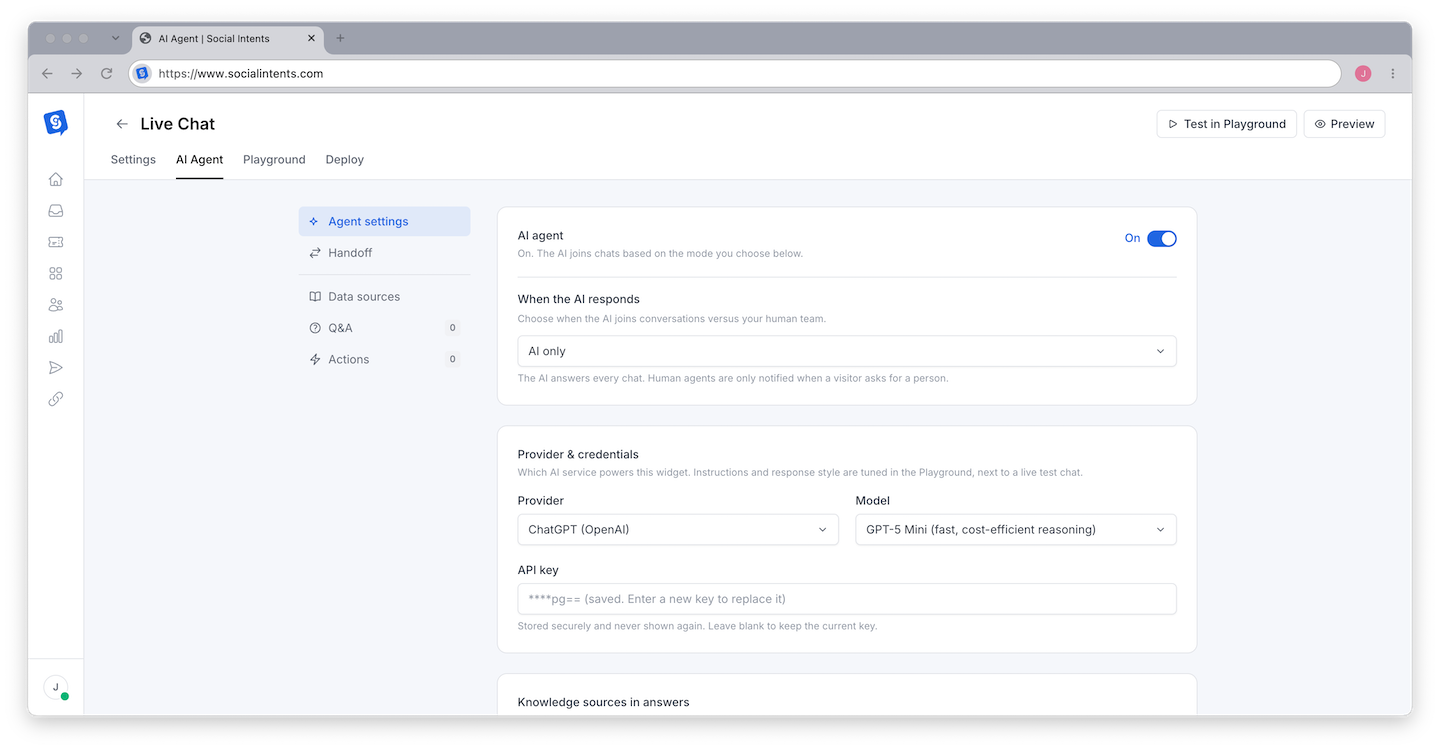
Click the AI Chatbot Settings tab - In the widget configuration panel, you will see multiple tabs for different settings groups. Click on the tab labeled AI Chatbot Settings (sometimes labeled "Chatbot"). This reveals all the chatbot configuration fields.

Step 3: Choose Your AI Engine

Select your chatbot type - Use the Chatbot Type dropdown to choose which AI engine powers your chatbot. Your options are:
EngineProviderIdeal para
ChatGPTOpenAIGeneral-purpose customer support, versatile conversations
ClaudeAnthropicComplex instructions, nuanced responses, compliance-sensitive industries
GéminisGoogleData-heavy queries, structured information, Google ecosystem

For most users building their first chatbot, ChatGPT is the recommended starting point. It is the most widely used, has extensive documentation, and handles general customer support conversations well. You can always switch engines later without losing your other settings.

For a detailed comparison, see Choosing Your AI Engine: ChatGPT vs Claude vs Gemini.

Step 4: Enter Your API Key

Paste your API key (or leave empty for included models) - If you selected ChatGPT and plan to use the GPT-4o or GPT-3.5 Turbo model, you can leave the API Key field empty. These models are included free with every paid Social Intents plan. For all other models (BYOK OpenAI models, Claude, or Gemini), enter the API key for your chosen provider.

Where to get your API key (if required):

  • OpenAI (ChatGPT BYOK models) - Visit platform.openai.com/api-keys to create a new key. You need an OpenAI account with billing enabled. Not needed for the free GPT-4o and GPT-3.5 Turbo models.
  • Anthropic (Claude) - Visit the Anthropic Console at console.anthropic.com to generate an API key.
  • Google (Gemini) - Create a Gemini API key through Google AI Studio at aistudio.google.com.
No API key needed for ChatGPT 4o. On any paid Social Intents plan, you can use GPT-4o and GPT-3.5 Turbo without providing an OpenAI API key. Just select ChatGPT as the engine, leave the API Key field empty, and you are ready to go. An API key is only required if you want to use a different OpenAI model or a different AI provider.
Keep your API key secure. If you do use a BYOK API key, it provides access to your AI provider account and its billing. Never share it publicly. Social Intents stores it securely and displays only an obfuscated version in the settings panel.

Step 5: Set a Chatbot Display Name

Name your chatbot - Enter a display name in the Chatbot Name field. This is the name visitors see in the chat. Choose something friendly and brand-appropriate, such as "Support Bot," "AI Assistant," or your company name followed by "Bot."

Step 6: Choose When the Chatbot Responds

Select a response mode - The When to Respond dropdown controls when your chatbot activates. This is one of the most important decisions for your chatbot setup.
ModeDescriptionIdeal para
Chatbot Only (No Agents)The chatbot handles all conversations. No human agents are involved.After-hours coverage, simple FAQ bots, low-volume sites
Chatbot + AgentsThe chatbot and human agents both participate in conversations.Hybrid support where AI assists agents
Chatbot First, Drop When Agent JoinsThe chatbot handles the chat initially, then leaves when a human agent takes over.Triage and qualification before human handoff
Chatbot on Missed ChatsThe chatbot only activates when no agent accepts the chat within the timeout period.Backup coverage for busy teams
Chatbot cuando está desconectadoThe chatbot only activates when all agents are offline.After-hours support coverage
Chatbot When Offline or MissedThe chatbot activates when agents are offline or when a chat is missed - combining both scenarios.Maximum coverage with human-first approach
Start with "Chatbot When Offline or Missed" if you have human agents during business hours. This gives your team the first opportunity to respond while ensuring visitors always get help. You can switch to a more chatbot-forward mode as you build confidence in the chatbot's responses.

Step 7: Write System Instructions

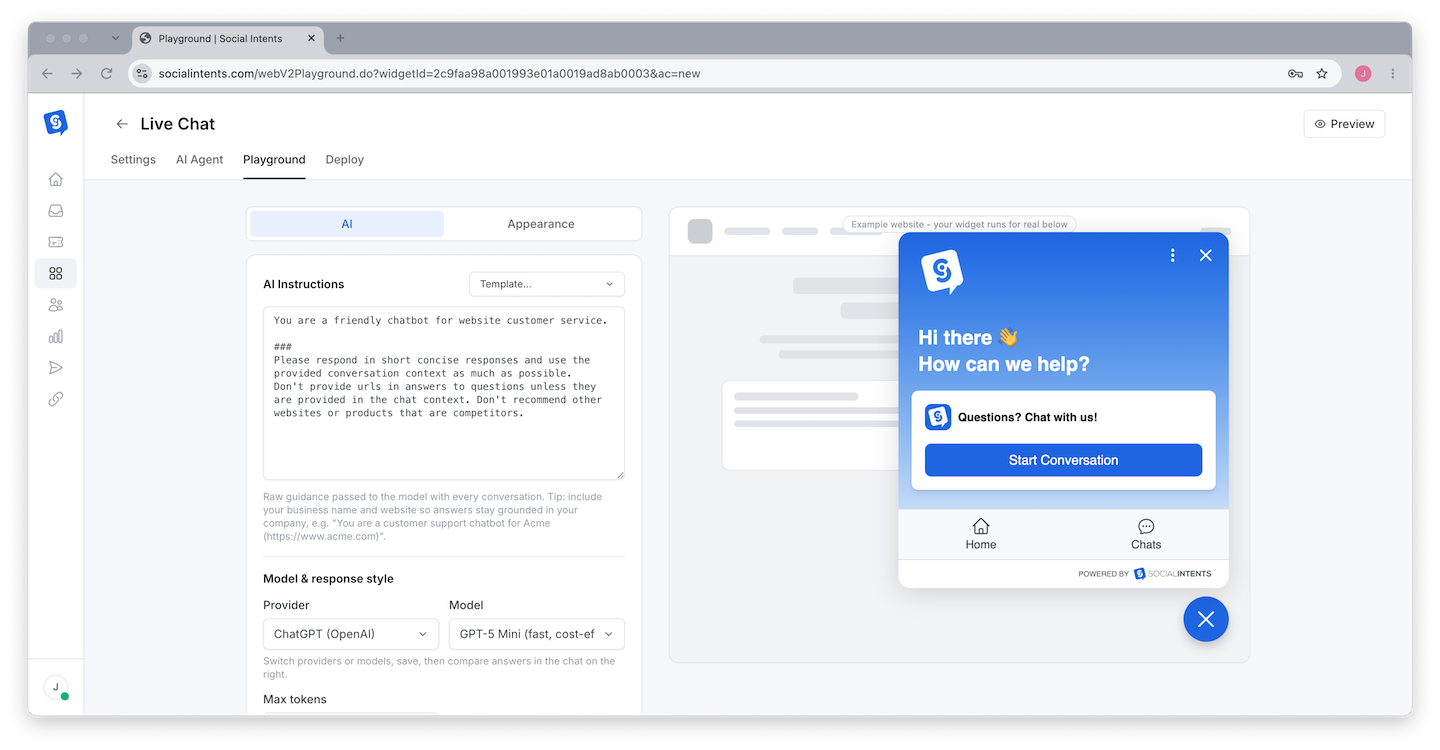
Define the chatbot's behavior - In the System Instructions textarea, write a prompt that tells the chatbot who it is, how to respond, and what boundaries to follow.

A good starting system instruction includes:

  • Who the chatbot is (company name, role)
  • What tone to use (friendly, professional, casual)
  • What topics it should and should not cover
  • How to handle questions it cannot answer

Example system instruction:

You are a helpful customer support assistant for Acme Corp. Answer questions about our products, pricing, and services using the training content provided. Be friendly and professional. If you do not know the answer, say "I don't have that information, but I can connect you with a team member who can help." Do not make up information. Do not discuss competitors.

For detailed guidance, see Writing Effective System Instructions.

Step 8: Configure Welcome Message and Quick Replies

Set the first interaction - Configure what visitors see when the chat opens.

The Default Welcome Response field sets the first message your chatbot sends when a visitor opens the chat. Write something inviting that sets expectations:

Hi! I'm the Acme Support Bot. I can help you with product questions, pricing, and account issues. What can I help you with today?

The Quick Replies field lets you add clickable buttons below the welcome message. Enter comma-separated values like:

Pricing, Product Features, Account Help, Talk to a Person

Quick replies help visitors start a conversation without having to type, and they guide the chatbot toward topics you have trained it on.

Step 9: Save Your Widget

Save all settings - Click the Save button at the bottom of the widget settings. Your chatbot is now configured and will begin responding according to the response mode you selected.

Training Your Chatbot

A chatbot without training data can only answer questions using its general knowledge. To make it useful for your specific business, you need to train it on your content.

After saving your widget settings, click the Train Your Chatbot link in the AI Chatbot Settings tab. This opens the training interface where you can:

  • Add website URLs - The system crawls your pages and extracts content
  • Upload documents - PDF, Word (.docx), Excel (.xlsx), and CSV files
  • Add custom Q&A pairs - Define specific questions and answers manually

For a complete guide to training, see Training Your Chatbot on Your Content.

Setting Up Escalation

Escalation is the process of handing a conversation from the chatbot to a human agent. You should configure escalation before going live so visitors can always reach a person when needed.

In the AI Chatbot Settings tab, find the Escalation section:

  • Escalation Trigger Phrases - Enter comma-separated phrases that trigger a handoff. Examples: "talk to a person, speak to an agent, human, representative, help me"
  • Escalation Confirmation Message - The message the chatbot sends when escalation is triggered. Default: "Sure, let me invite an agent, one moment." Customize this to match your brand voice.

When a visitor types a message matching any escalation phrase, the chatbot stops responding and routes the conversation to your human agents through your connected platform (Microsoft Teams, Slack, Google Chat, or the web dashboard).

For advanced escalation configuration, see Setting Up Escalation to Human Agents.

Testing Your Chatbot

Before going live, test your chatbot to make sure it works correctly.

Method 1: Preview on Your Website

If your chat widget is already installed on your website, open your site in a browser. The chatbot should be active according to your response mode. Start a conversation and test common questions.

Method 2: Use the Widget Preview

In your Social Intents dashboard, use the widget preview feature to see how the chatbot looks and responds without needing to visit your website.

What to Test

Test ScenarioWhat to Check
Basic questionAsk a question you have trained the chatbot on. Verify the answer is accurate and well-formatted.
Unknown questionAsk something outside the chatbot's training. Verify it responds gracefully instead of making up an answer.
Escalation triggerType one of your escalation phrases. Verify the chatbot sends the confirmation message and routes to human agents.
Quick repliesClick each quick reply button. Verify the chatbot handles each topic correctly.
Welcome messageOpen a fresh chat. Verify the welcome message appears and quick replies are displayed.
Tone and personalityHave a multi-turn conversation. Verify the chatbot maintains the personality defined in your system instructions.

Going Live

Once testing is complete and you are satisfied with the chatbot's responses:

Verify your response mode - Make sure the "When to Respond" setting matches your intended launch behavior.
Confirm escalation is working - Ensure your team is connected through their platform (Teams, Slack, etc.) and ready to receive escalated conversations.
Monitor the first few conversations - Watch the first few real visitor conversations to identify any issues with answers, tone, or escalation behavior. Adjust system instructions, training content, or escalation phrases as needed.

Common Setup Scenarios

Scenario 1: After-Hours Bot Only

You want human agents during business hours and the chatbot only after hours. Set the response mode to Chatbot When Offline. Use your agents' online schedule to automatically go offline outside business hours.

Scenario 2: Full AI-Powered Support

You want the chatbot to handle everything with no human agents. Set the response mode to Chatbot Only (No Agents). Make sure your training content is thorough and your escalation phrases still work so visitors can request a callback or leave a message.

Scenario 3: AI Triage Before Human

You want the chatbot to qualify visitors and collect information before handing off. Set the response mode to Chatbot First, Drop When Agent Joins. Write system instructions that tell the chatbot to collect the visitor's name, issue type, and account number before offering to connect them with an agent.

Scenario 4: Backup for Busy Teams

You want agents to handle chats when available, with the chatbot stepping in only when chats are missed. Set the response mode to Chatbot on Missed Chats. This ensures humans have first priority while no chat goes unanswered.

Next Steps

After building your first chatbot, explore these topics to optimize it:

Preguntas frecuentes

Do I need my own API key?

Yes. For ChatGPT, Social Intents includes GPT-3.5 Turbo and GPT-4o free with every subscription - no API key needed. To use additional OpenAI models, Claude (Anthropic), or Gemini (Google), you provide your own API key (BYOK). This gives you full control over your AI costs and usage. Each provider offers free trial credits for new accounts.

How much does the AI cost to run?

The free GPT-3.5 Turbo and GPT-4o models included with your subscription have no additional AI cost. For BYOK models, costs depend on your provider's pricing and your chat volume. Most models cost fractions of a cent per message. For most small to medium businesses, monthly AI costs are modest. Monitor your usage in your AI provider's dashboard.

Can I change the AI engine after setup?

Yes. Change the Chatbot Type dropdown in your widget settings at any time. Your system instructions, escalation phrases, and other settings are preserved. If switching to Claude or Gemini, you will need to provide an API key for that engine. If switching to ChatGPT with GPT-4o or GPT-3.5 Turbo, no API key is needed.

What happens if my API key stops working?

If your API key becomes invalid (expired, revoked, or out of credits), the chatbot will not respond. Visitors will see no response from the bot, and the chat will behave as if no chatbot is configured. Replace the key in your widget settings to restore chatbot functionality.

Can I have different chatbots on different widgets?

Yes. Each widget has its own independent chatbot configuration. You can use different AI engines, system instructions, and training content on each widget. This is useful for having different chatbot personalities on different pages or for different product lines.

Does the chatbot work on mobile?

Yes. The chatbot works on all devices where your chat widget is displayed. The visitor experience is the same on desktop, tablet, and mobile browsers.