Setting Up Escalation to Human Agents

10 min read Updated Mar 11, 2026 Chatbots de IA

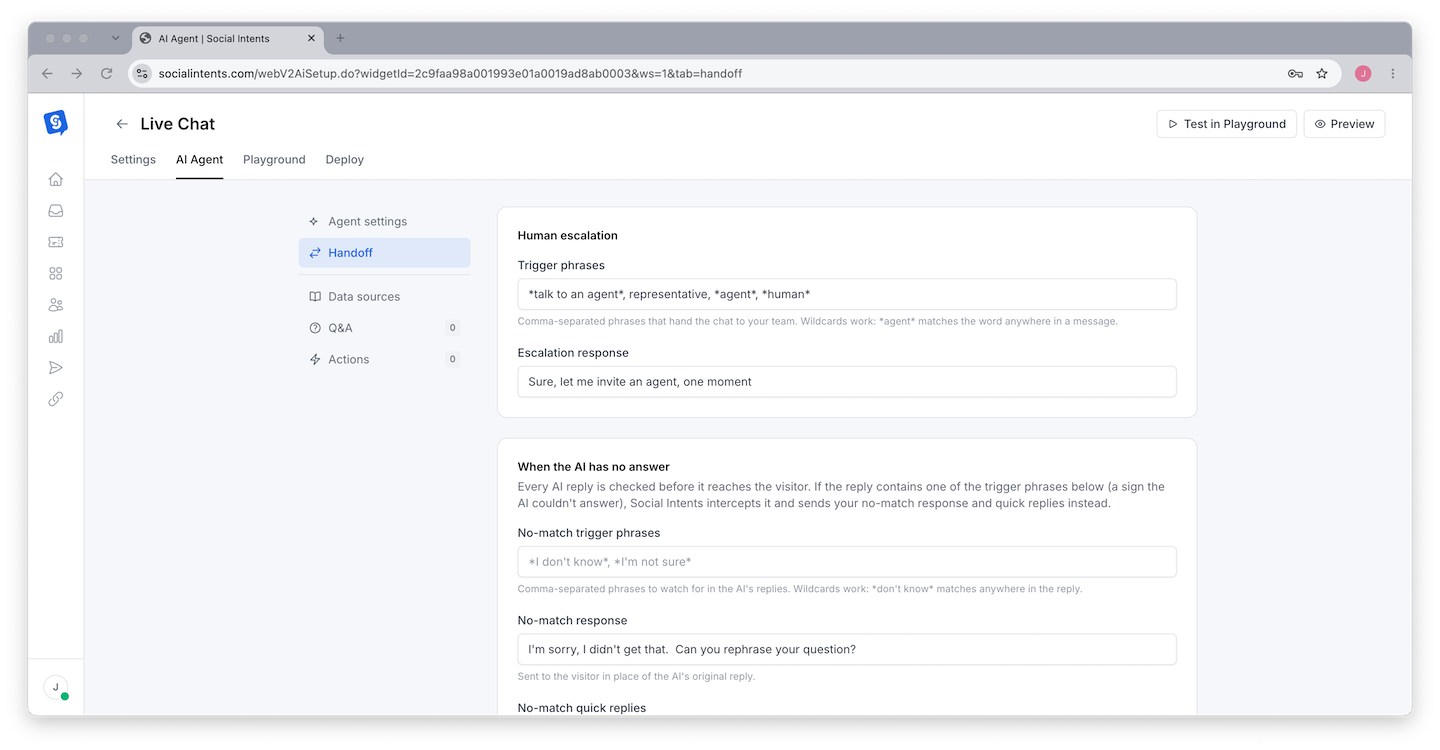
Escalation is the process of handing a conversation from your AI chatbot to a human agent. No matter how well-trained your chatbot is, there will always be situations where a visitor needs human help - complex problems, emotional situations, account-specific issues, or questions outside the chatbot's training. Social Intents provides a configurable escalation system that detects when a visitor wants to speak to a person, sends a confirmation message, and routes the conversation to your human agents through your connected platform. Below is how to set up, customize, and optimize escalation.

How Escalation Works

When a visitor types a message that matches one of your configured escalation trigger phrases, Social Intents initiates an automatic handoff process:

Visitor triggers escalation - The visitor sends a message containing a phrase that matches one of your configured escalation triggers (e.g., "talk to a person" or "speak to an agent").
Phrase matching - Social Intents checks the visitor's message against your list of escalation phrases. The matching is case-insensitive, so "Talk to an Agent" and "talk to an agent" both trigger the same escalation.
Confirmation message sent - The chatbot sends your configured confirmation message to the visitor. The default message is "Sure, let me invite an agent, one moment." You can customize this to match your brand voice.
Conversation routed to agents - The chat is routed to your human agents through your connected messaging platform - Microsoft Teams, Slack, Google Chat, or the Social Intents web dashboard. Agents see the conversation history, including everything the visitor discussed with the chatbot.
Chatbot stops responding - Once escalation is triggered, the chatbot stops generating AI responses for that conversation. The human agent takes over the chat completely.

Configuring Escalation

Opening Escalation Settings

Navigate to your widget settings - Log in to Social Intents, go to your widget list, and click the widget you want to configure.
Open the AI Chatbot Settings tab - Find the chatbot configuration section.
Locate the Escalation section - Scroll down to find the escalation configuration fields.

Setting Escalation Trigger Phrases

The Escalation Trigger Phrases field accepts a comma-separated list of phrases that trigger a handoff to human agents. When a visitor's message contains any of these phrases, the escalation process begins.

Enter your phrases separated by commas:

talk to a person, speak to an agent, human agent, representative, talk to someone, need a human, real person, connect me with support, I want to speak to someone

Choosing Effective Trigger Phrases

The phrases you configure should match how your visitors naturally ask to speak with a person. Consider these categories:

CategoryExample Phrases
Direct requeststalk to a person, speak to an agent, connect me with someone, transfer me
Frustration signalsthis is not helpful, need a human, you are not understanding, real person please
Support escalationspeak to support, I need help from your team, connect me with a representative
Sales intenttalk to sales, speak to someone about pricing, schedule a demo, contact your team
Urgencythis is urgent, I have an emergency, need immediate help
Start broad, then refine. Begin with 10-15 common phrases, then review your chat transcripts to see what phrases visitors actually use when they want a human. Add those phrases to your list. Over time, your trigger list becomes tuned to your specific audience.

Setting the Confirmation Message

The Escalation Confirmation Message field defines what the chatbot says when escalation is triggered. If you leave this field blank, the default message is used:

Sure, let me invite an agent, one moment

Customize this message to match your brand voice and set expectations:

ToneExample Message
ProfessionalI'm connecting you with a team member now. They'll have access to our conversation so far. Please hold for a moment.
FriendlyOf course! Let me get a real person to help you. They'll be with you shortly and can see what we've discussed.
ConciseConnecting you with an agent now. One moment please.
InformativeI'm transferring you to a team member who can help. Our support hours are Monday–Thursday 8am–5pm ET. They'll be with you shortly.
Set expectations in the confirmation message. If your team has specific support hours, mention them. If wait times may vary, let the visitor know. This reduces frustration during the handoff period.

Where Escalated Chats Go

When a chat is escalated, it is routed to your human agents through whatever messaging platform your widget is connected to:

PlataformaHow Agents Receive Escalated Chats
Microsoft TeamsThe escalated chat appears as a new message in the configured Teams channel. Agents respond directly in Teams.
SlackThe escalated chat appears in the configured Slack channel. Agents respond directly in Slack.
Chat de GoogleThe escalated chat appears in the configured Google Chat space. Agents respond directly in Google Chat.
Panel webThe escalated chat appears in the Social Intents web dashboard chat console.

Agents see the full conversation history - every message the visitor exchanged with the chatbot. This means agents have full context and can pick up where the chatbot left off without asking the visitor to repeat themselves.

Escalation with Different Response Modes

Your chatbot's response mode (configured during setup) affects how escalation works in practice:

Response ModeEscalation Behavior
Chatbot Only (No Agents)Escalation triggers the confirmation message and routes the chat to agents. If no agents are configured or available, the visitor receives the confirmation message but may not get a human response until agents come online.
Chatbot + AgentsAgents are already in the conversation. Escalation removes the chatbot from responding and notifies agents that the visitor specifically requested human attention.
Chatbot First, Drop When Agent JoinsEscalation is effectively the same as an agent joining - the chatbot stops responding and the agent takes over.
Chatbot cuando está desconectadoThe chatbot only activates when agents are offline anyway. Escalation sends the notification, but since agents are offline, the visitor may need to leave contact information or wait.
Chatbot When Offline or MissedSimilar to offline-only mode. If escalation occurs during offline hours, set your confirmation message to include offline instructions like "Please leave your email and we'll follow up when our team is back online."
Consider offline escalation carefully. If your chatbot runs after hours and a visitor triggers escalation when no agents are available, they will receive your confirmation message but may not get a human response until the next business day. Customize your confirmation message to handle this scenario: include your support hours, suggest leaving an email, or direct them to your contact form.

Escalation Best Practices

Always Have Escalation Enabled

Every customer-facing chatbot should have escalation configured. Even the best AI chatbot cannot handle every situation. Visitors who cannot reach a human when they need one will leave your site frustrated. Escalation is your safety net.

Include Escalation in System Instructions

Add instructions to your system prompt that tell the chatbot when to suggest escalation proactively - not just wait for the visitor to ask:

If the visitor is clearly frustrated, has asked the same question twice, or needs account-specific help, suggest they speak with a human agent by saying "Would you like me to connect you with a team member who can help?"

This creates a proactive escalation path where the chatbot itself recognizes when to hand off, rather than relying solely on visitor-initiated trigger phrases.

Include Quick Reply Buttons for Escalation

Add "Talk to a Person" or "Connect with Support" as one of your Quick Reply buttons in the welcome message. This gives visitors a visible, one-click path to a human from the very start of the conversation. Many visitors may not know they can type "talk to a person" - a button makes it obvious.

Keep Conversation Context Visible to Agents

When agents receive an escalated chat, they see the full chatbot conversation. Train your agents to read the conversation history before responding. This avoids the frustrating experience of a visitor explaining their issue to the chatbot and then having to repeat everything to the human agent.

Monitor Escalation Rates

Track how often conversations are escalated. A high escalation rate (e.g., more than 30-40% of chatbot conversations) may indicate:

  • Training content gaps - the chatbot does not have enough information to answer common questions
  • Poor system instructions - the chatbot is not responding helpfully
  • Wrong use case - the chatbot may be deployed for tasks that require human judgment

A very low escalation rate (under 5%) could mean visitors do not know they can request a human, or the escalation phrases do not match how your visitors naturally ask.

Handling Edge Cases

When No Agents Are Available

If escalation is triggered but no agents are online or available, the visitor receives the confirmation message but may wait indefinitely. Handle this by:

  • Including support hours in your confirmation message
  • Setting up an offline message that captures the visitor's email or phone number
  • Using the chatbot's response mode to only run when agents are offline, and crafting the escalation confirmation to address the offline scenario

Repeated Escalation Attempts

Some visitors may type escalation phrases multiple times. Once escalation has been triggered, subsequent messages from the visitor go through the normal routing - the chatbot has already stopped responding and the conversation is in the agent queue. The system handles this gracefully without sending multiple escalation notifications.

Escalation from WhatsApp and SMS

If your widget handles WhatsApp or SMS conversations through Social Intents, escalation works the same way. The visitor's message is checked against your escalation phrases, the confirmation is sent through the messaging channel, and the conversation is routed to your human agents. See Visitor Channels for details on WhatsApp and SMS integration.

Testing Escalation

Before going live, test your escalation setup thoroughly:

Test each trigger phrase - Start a chat with your chatbot and type each escalation phrase one at a time in separate conversations. Verify the confirmation message appears for each one.
Verify agent notification - Confirm that your agents receive the escalated conversation in their platform (Teams, Slack, etc.) with the full chatbot conversation history.
Test agent response - Have an agent respond to the escalated chat. Verify the visitor receives the agent's message and the conversation continues smoothly.
Test offline escalation - Set all agents to offline and trigger an escalation. Verify the visitor gets an appropriate experience (either your offline form or a message about support hours).
Test variations - Try phrases that are close to but not exactly your triggers. This helps you identify gaps in your phrase list where visitors might reasonably expect escalation but do not trigger it.

Preguntas frecuentes

Can the chatbot suggest escalation on its own?

Yes, if you include instructions in your system prompt telling the chatbot when to suggest speaking with a human. For example: "If the visitor asks a question you cannot answer, suggest they speak with a team member." The chatbot can suggest it, and the visitor can then type a trigger phrase or click a quick reply button to initiate the actual handoff.

Is the phrase matching exact or fuzzy?

The matching is case-insensitive and checks whether the visitor's message contains any of the trigger phrases. If your trigger phrase is "talk to a person" and the visitor types "I want to talk to a person please," it will match because the message contains the phrase. The matching is substring-based, not exact-match.

Can I have different escalation phrases for different widgets?

Yes. Each widget has its own independent escalation configuration. You can set different trigger phrases and confirmation messages for each widget. This is useful if you have separate support and sales widgets with different escalation behaviors.

What happens to the chatbot after escalation?

Once escalation is triggered, the chatbot stops responding for that conversation. The human agent handles the remainder of the chat. The chatbot remains active for new conversations from other visitors.

Can I reverse an escalation?

Once escalation is triggered, the conversation is handed off to human agents. There is no automatic way to transfer the conversation back to the chatbot. However, this is by design - once a visitor requests a human, forcing them back to the chatbot would be a poor experience.

How many escalation phrases can I add?

There is no hard limit on the number of escalation phrases. Add as many as needed to cover the various ways your visitors request human help. Common setups have 10-20 phrases. Avoid adding so many that normal questions accidentally trigger escalation.

Does escalation work with all messaging integrations?

Yes. Escalation routes conversations to whatever platform your widget is connected to - Microsoft Teams, Slack, Google Chat, or the web dashboard. The routing destination is determined by your widget's channel configuration.