
Analyze - in the left sidebar - is where your chat data becomes decisions: volume and response-time trends, agent performance, visitor satisfaction, AI insights, and full transcript search, filterable by date range and widget. This overview maps what lives where and which numbers deserve your attention.
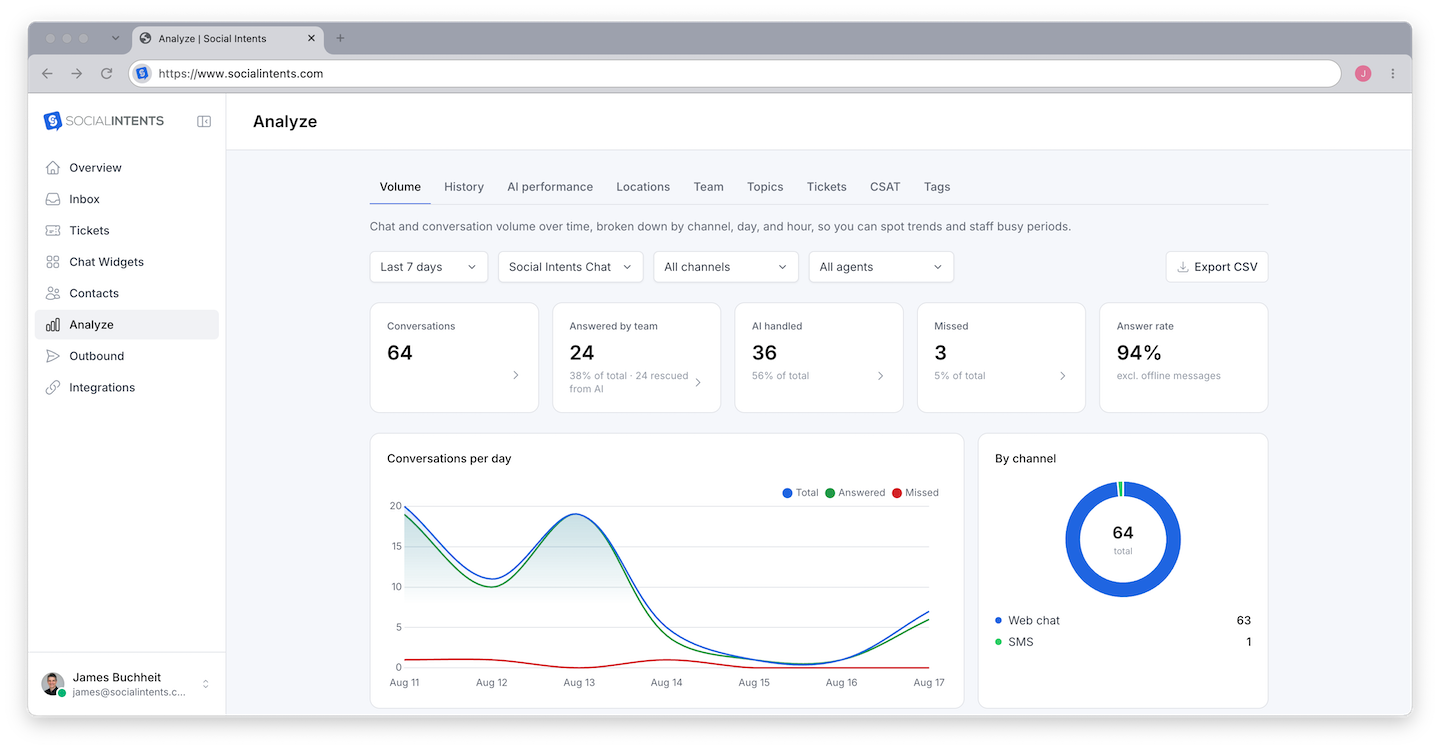
What Analyze Contains
| Area | What it answers | Deep dive |
|---|---|---|
| Visión general | How much chat happens, when, and how fast we respond | This article |
| Agent performance | Who handles what, response times, and chats per agent | Informe de rendimiento de los agentes |
| Comentarios | How visitors rate their experience | Comentarios y puntuaciones de satisfacción |
| AI insights | Sentiment across every conversation and what topics visitors raise | AI Insights: Sentiment and Topics |
| Transcripciones | The full text of every conversation, searchable | Transcripciones e historial de chat |
| Acciones | Which AI actions fired and what they produced | Informe de acciones |
| Exports | CSV downloads of chats, leads, and report data | Exportación de informes y datos de clientes potenciales |
The Core Metrics
Chat volume
Total conversations over the selected range, trended over time and split by source - website widget, WhatsApp, SMS, email. Watch for the weekly pattern first (most sites have one), then for deviations from it. A volume spike with no marketing cause usually means something on your site broke or confused people; check topics to find out what.
Tiempo de respuesta
How long visitors wait for a first reply. This is the metric most correlated with chat satisfaction - visitors forgive a lot if someone answers fast. If it creeps up, check coverage against your online schedule and consider letting the AI agent take first response.
Missed chats
Conversations where nobody replied while the visitor waited. Every one is a refund request, sale, or signup that went elsewhere. Persistent missed chats at specific hours are a staffing signal; at random hours, a notification problem - see Troubleshooting Missed Chats.
Satisfaction
Post-chat ratings from visitors who complete the feedback form. Because only a fraction rate, pair this with sentiment, which scores every conversation. Details: Feedback and Satisfaction Scores.
AI containment
For teams running a chatbot: the share of AI conversations resolved without human handoff. Rising containment with stable satisfaction means the bot is genuinely absorbing work; rising containment with falling satisfaction means it is stonewalling - revisit escalation settings.
Filters
Every view filters by date range and widget. Multi-widget accounts should review per widget - a support widget and a sales widget have opposite definitions of "good" (fast resolution vs. long, qualifying conversations). See When to Use Multiple Chat Widgets.
A Reporting Rhythm That Works
- Daily (managers, 2 min) - Missed chats yesterday; anything sitting in the Awaiting queue.
- Weekly (15 min) - Volume vs. last week, response-time trend, negative-sentiment transcripts, top topics. Turn findings into bot training or canned responses.
- Monthly - Agent workload balance, satisfaction trend, AI containment, and an export for whatever your leadership deck needs.
Preguntas frecuentes
Who can see Analyze?
Admins and Managers see full reporting. Agents see their own activity. Roles: Understanding Roles.
How current is the data?
Conversations appear in reporting shortly after they occur - the dashboard reflects same-day activity, not a nightly batch.
Do AI-only conversations count in volume?
Yes, and the AI filter separates them, so you can view human, AI, and blended volume independently. What counts as a conversation: this FAQ.
Can I get reports automatically?
Use CSV exports for scheduled reviews, or webhooks to stream chat data into your own BI stack.